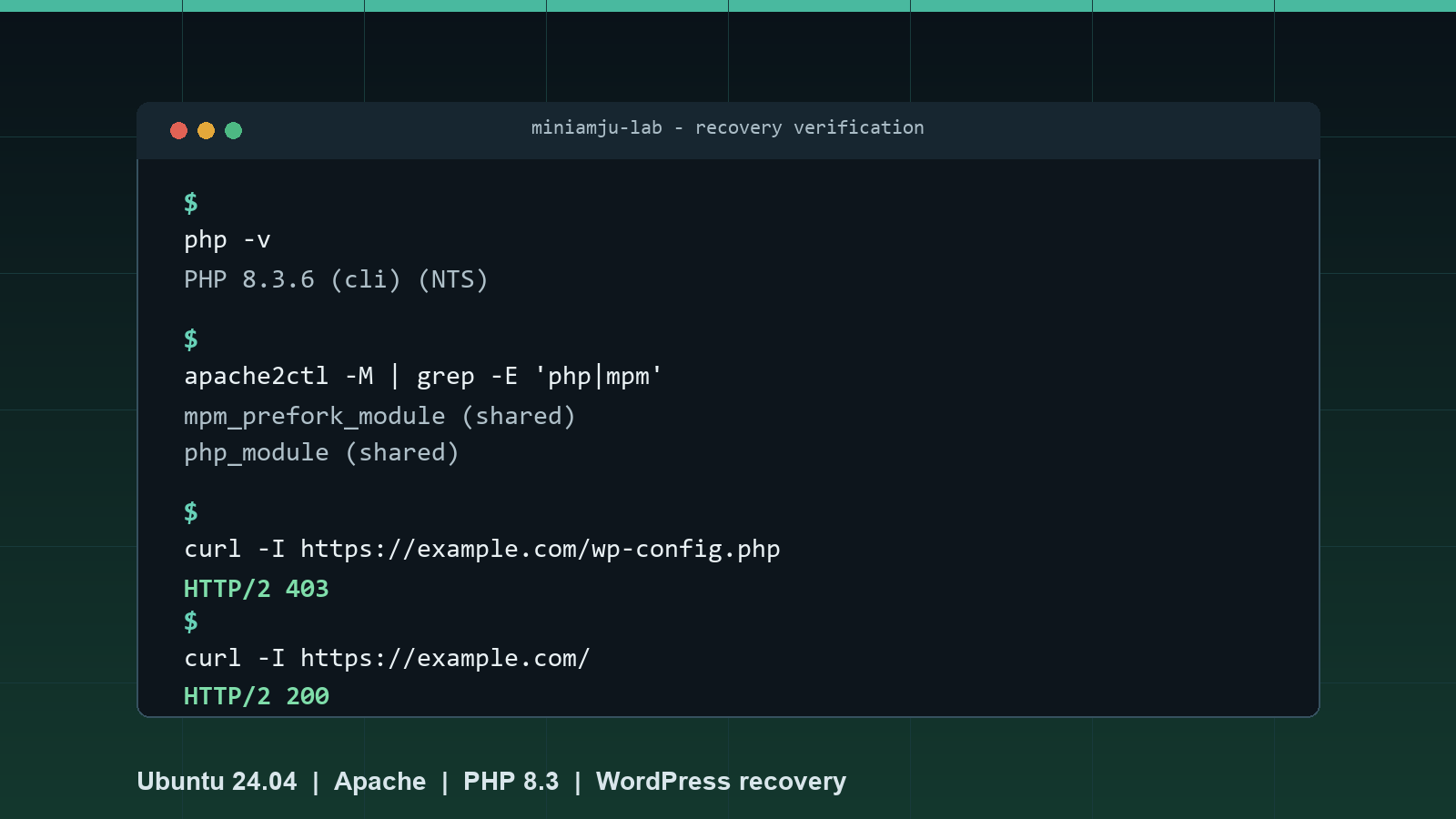
A DIY recovery guide for Ubuntu 24.04, Apache, PHP 8.3, Nginx, and WordPress
A WordPress site suddenly displaying source code instead of a webpage is more than a rendering problem. It means the web server is reading .php files as ordinary text instead of passing them to PHP for execution.
If this happens to index.php, visitors see WordPress bootstrap code. If it happens to wp-config.php, visitors may be able to download:
- Database names, usernames, and passwords
- WordPress authentication keys and salts
- Custom API keys or service credentials
- Debugging and environment settings
This guide covers how to identify the failure, contain it, restore PHP 8.3 on Ubuntu 24.04, rotate exposed secrets, harden the site, and verify the repair.
Important: If PHP source is publicly visible, treat the incident as a credential exposure. Take the site offline before investigating further.
The Typical Architecture
The example setup used throughout this guide is:
Internet
   |
   v
Nginx reverse proxy with HTTPS
   |
   v
Apache on Ubuntu 24.04
   |
   +-- PHP 8.3
   +-- WordPress
   +-- MariaDB bound to localhost
Nginx terminates HTTPS and forwards requests to Apache over a private network. Apache executes WordPress through PHP.
What Causes the Problem?
Apache does not execute PHP by itself. It needs a PHP handler, commonly one of:
libapache2-mod-php8.3- PHP-FPM through
proxy_fcgi
The problem occurs when the handler is missing, disabled, or disconnected from Apache. Common triggers include:
- An operating-system upgrade
- A PHP version upgrade
- Removal of an old PHP package
- Switching Apache MPM modules
- An incomplete package installation
- A broken virtual-host or handler configuration
Apache may continue serving .php files, but without interpreting them.
Recognising the Symptoms
Instead of the website, a visitor may see:
<?php
define( 'WP_USE_THEMES', true );
require __DIR__ . '/wp-blog-header.php';
Other warning signs include:
- PHP files returned with a blank or missing
Content-Type wp-config.phpreturning a non-zero response body- Apache showing no loaded PHP module
- PHP working at the command line but not through Apache
Command-line PHP and Apache PHP are separate. This command can succeed:
php -v
while Apache still serves source code.
Step 1: Contain the Exposure
Stop Apache immediately:
sudo systemctl stop apache2
Alternatively, remove or disable the Nginx proxy route. Stopping Apache is usually the fastest option.
Confirm it is stopped:
systemctl is-active apache2
Expected:
inactive
Do not restore public service until PHP execution and configuration-file protection have both been tested.
Step 2: Find the Active WordPress Directory
Do not assume WordPress is installed in /var/www/html.
Locate wp-config.php:
sudo find /var/www -type f -name 'wp-config.php' -print
Inspect Apache's active virtual hosts:
sudo apache2ctl -S
sudo grep -R "DocumentRoot" /etc/apache2/sites-enabled
Record the active WordPress document root for use in later commands:
/var/www/wordpress
Replace that example path if your installation differs.
Step 3: Confirm Whether wp-config.php Was Downloaded
Search Apache logs:
sudo grep -R "wp-config.php" /var/log/apache2/access.log*
If Nginx is the public reverse proxy, search its logs as well:
sudo grep -H "wp-config.php" /var/log/nginx/access.log*
Useful distinctions:
HEAD ... 200 0may mean PHP executed normally and returned no body.GET ... 403means access was blocked.GET ... 200with a non-zero byte count is suspicious.
Compare the response size with the actual file:
sudo stat -c '%s %n' /var/www/wordpress/wp-config.php
If the logged response size exactly matches the file size, the complete configuration file was almost certainly downloaded.
Requests for variants such as these are typical automated scanning:
wp-config.php.old
wp-config.php.bak
wp-config.php.save
wp-config.php~
.wp-config.php.swp
Do not trust user-agent strings that claim to be Googlebot, ChatGPT, Safari, or Chrome. Automated scanners routinely spoof them.
Step 4: Restore PHP 8.3
Ubuntu 24.04 provides PHP 8.3 through its supported repositories.
Update package metadata:
sudo apt update
Install PHP and common WordPress extensions:
sudo apt install \
  php8.3 libapache2-mod-php8.3 php8.3-cli php8.3-common \
  php8.3-mysql php8.3-curl php8.3-gd php8.3-mbstring \
  php8.3-xml php8.3-zip php8.3-intl php8.3-opcache
Disable obsolete PHP modules if they remain:
sudo a2dismod php8.0 2>/dev/null || true
sudo a2dismod php8.1 2>/dev/null || true
sudo a2dismod php8.2 2>/dev/null || true
mod_php requires Apache's prefork MPM:
sudo a2dismod mpm_event 2>/dev/null || true
sudo a2enmod mpm_prefork
sudo a2enmod php8.3
sudo a2enmod rewrite
Validate the configuration:
sudo apache2ctl configtest
Expected:
Syntax OK
Confirm the modules:
apache2ctl -M | grep -E 'php|mpm'
Expected:
mpm_prefork_module (shared)
php_module (shared)
Confirm the PHP version:
php -v
The output should report PHP 8.3.
Step 5: Rotate the Database Password
If wp-config.php was exposed, its database password must be replaced even when MariaDB listens only on localhost.
Check the listener:
sudo ss -lntp | grep ':3306'
A safer result resembles:
127.0.0.1:3306
Avoid putting the new password directly in shell history.
Generate a password:
openssl rand -base64 36
Store it privately, then open MariaDB without recording SQL history:
sudo env MYSQL_HISTFILE=/dev/null mariadb
Change the WordPress database user's password:
ALTER USER 'wordpress_user'@'localhost'
  IDENTIFIED BY 'your-generated-password';
FLUSH PRIVILEGES;
EXIT;
Edit wp-config.php:
sudo nano /var/www/wordpress/wp-config.php
Replace the DB_PASSWORD value with the identical password.
Test the account:
mariadb -u wordpress_user -p -h localhost wordpress_database \
  -e 'SELECT 1;'
Expected:
+---+
| 1 |
+---+
| 1 |
+---+
Step 6: Replace WordPress Keys and Salts
Exposed salts should be replaced to invalidate existing authentication cookies.
Download fresh values:
sudo curl -fsS https://api.wordpress.org/secret-key/1.1/salt/ \
  -o /root/new-wordpress-salts.txt

sudo chmod 600 /root/new-wordpress-salts.txt
Review the new values:
sudo nano /root/new-wordpress-salts.txt
Edit wp-config.php and replace all eight definitions:
sudo nano /var/www/wordpress/wp-config.php
The definitions are:
AUTH_KEY
SECURE_AUTH_KEY
LOGGED_IN_KEY
NONCE_KEY
AUTH_SALT
SECURE_AUTH_SALT
LOGGED_IN_SALT
NONCE_SALT
Delete the temporary file securely:
sudo shred -u /root/new-wordpress-salts.txt
Check PHP syntax:
php -l /var/www/wordpress/wp-config.php
Expected:
No syntax errors detected
Step 7: Protect wp-config.php Independently of PHP
The protection must still work if PHP breaks again.
Create an Apache security configuration:
sudo tee /etc/apache2/conf-available/wordpress-security.conf >/dev/null <<'EOF'
<FilesMatch "^wp-config\.php(?:\..*)?$">
    Require all denied
</FilesMatch>
EOF
Enable and validate it:
sudo a2enconf wordpress-security
sudo apache2ctl configtest
Add an equivalent rule to the public Nginx HTTPS server block:
location ~* ^/wp-config\.php(?:\..*)?$ {
    deny all;
}
Validate and reload Nginx:
sudo nginx -t
sudo systemctl reload nginx
Blocking both layers provides defence in depth.
Step 8: Correct File Permissions
wp-config.php should not be writable by the web-server account or other users.
Set its ownership and permissions:
sudo chown root:www-data /var/www/wordpress/wp-config.php
sudo chmod 640 /var/www/wordpress/wp-config.php
Verify:
sudo stat -c '%U:%G %a %n' /var/www/wordpress/wp-config.php
Expected:
root:www-data 640 /var/www/wordpress/wp-config.php
Step 9: Handle HTTPS Behind Nginx
The Nginx proxy should forward the original request details:
proxy_set_header Host $http_host;
proxy_set_header X-Real-IP $remote_addr;
proxy_set_header X-Forwarded-For $proxy_add_x_forwarded_for;
proxy_set_header X-Forwarded-Proto $scheme;
WordPress must recognise HTTPS from the proxy. Add this to wp-config.php if it is not already present:
if (
    ! empty($_SERVER['HTTP_X_FORWARDED_PROTO']) &&
    $_SERVER['HTTP_X_FORWARDED_PROTO'] === 'https'
) {
    $_SERVER['HTTPS'] = 'on';
}

define('FORCE_SSL_ADMIN', true);
define('WP_HOME', 'https://www.example.com');
define('WP_SITEURL', 'https://www.example.com');
Replace www.example.com with the real hostname.
Validate again:
php -l /var/www/wordpress/wp-config.php
Step 10: Start Apache and Test Locally
Start Apache:
sudo systemctl start apache2
sudo systemctl is-active apache2
Test the configuration-file block:
curl -sS -o /dev/null -w '%{http_code}\n' \
  -H 'Host: www.example.com' \
  http://127.0.0.1/wp-config.php
Expected:
403
Test WordPress while simulating the proxy:
curl -sS -D - -o /dev/null \
  -H 'Host: www.example.com' \
  -H 'X-Forwarded-Proto: https' \
  http://127.0.0.1/
Expected:
HTTP/1.1 200 OK
A redirect is acceptable only when it points to the correct HTTPS hostname.
Step 11: Test from Outside the Origin Server
Test the public site:
curl -I https://www.example.com/
Expected:
HTTP/1.1 200 OK
Test protected files:
curl -sS -o /dev/null -w '%{http_code}\n' \
  https://www.example.com/wp-config.php

curl -sS -o /dev/null -w '%{http_code}\n' \
  https://www.example.com/wp-config.php.old
Expected:
403
403
Verify that PHP source is not present:
curl -sS https://www.example.com/ | head
The response should contain rendered HTML, not <?php.
Step 12: Check for Follow-On Changes
Search for PHP files modified after the exposure:
sudo find /var/www/wordpress -type f -name '*.php' \
  -newermt 'YYYY-MM-DD HH:MM:SS UTC' \
  -printf '%TY-%Tm-%Td %TH:%TM:%TS %u:%g %m %p\n'
Investigate:
- Unexpected PHP files under
wp-content/uploads - Random filenames
- Recently modified WordPress core files
- Unknown plugins or themes
- Unexpected administrator accounts
Reset administrator passwords and review all active WordPress sessions.
Verification Checklist
- Apache was taken offline during remediation.
- PHP 8.3 is installed.
- Apache loads
php_module. - Apache uses
mpm_prefork. -
apache2ctl configtestreportsSyntax OK. - The database password was rotated.
- WordPress keys and salts were replaced.
-
wp-config.phpisroot:www-datawith mode640. - Apache blocks
wp-config.php. - Nginx blocks
wp-config.phpand common backup suffixes. - MariaDB listens only on the intended interfaces.
- The homepage returns rendered HTML.
- Public and local
wp-config.phprequests return403. - WordPress generates HTTPS URLs.
- Recent PHP file changes have been reviewed.
- Administrator accounts and passwords have been reviewed.
Lessons Learned
The key lesson is that PHP execution is part of the security boundary. A site can look merely broken while silently exposing its most sensitive configuration.
The most effective controls are layered:
- Keep the operating system and PHP supported.
- Verify Apache's PHP handler after upgrades.
- Block secret files at Apache and Nginx.
- Keep database services off public interfaces.
- Use restrictive file permissions.
- Log public requests at the reverse proxy.
- Test sensitive URLs after every platform upgrade.
References
- Ubuntu Server: Install and configure PHP
https://ubuntu.com/server/docs/how-to/web-services/install-php/ - Ubuntu packages:
libapache2-mod-php8.3
https://packages.ubuntu.com/noble/libapache2-mod-php8.3 - WordPress hardening guidance
https://developer.wordpress.org/advanced-administration/security/hardening/ - WordPress
wp-config.phpguidance
https://developer.wordpress.org/advanced-administration/wordpress/wp-config/ - WordPress salt rotation with WP-CLI
https://developer.wordpress.org/cli/commands/config/shuffle-salts/

Comments are closed